Connecting QuickBooks Desktop
QuickBooks Desktop runs on your own Windows computer rather than in the cloud, so connecting it takes a couple of extra steps. Kipper reads your data through two helpers working together:
- QuickBooks Web Connector: a small program from Intuit that comes built into QuickBooks Desktop and shares your company file securely
- Conductor: a secure service that connects Kipper to the Web Connector and passes your data across
Before you start
You'll need:
- Admin access to Kipper
- QuickBooks Desktop installed and running, with the company file you want to connect open (the Web Connector comes built in, so there's no separate install)
Connecting QuickBooks Desktop
- In the Kipper portal, go to Data Sources in the sidebar.
- Select QuickBooks Desktop.
-
Click Connect. You'll be redirected to the Conductor setup flow. Complete these steps in Conductor:
3.1 — Click Start. This kicks off the setup (it takes about 5 minutes).
3.2 — Open QuickBooks Desktop. Make sure you're on the computer that keeps QuickBooks Desktop open, and confirm the checklist Conductor shows before continuing.
3.3 — Open your company file and sign in as Admin. In QuickBooks Desktop, open the company file you want to connect and sign in as the Admin user.
3.4 — Download the configuration file. Click Download config file to save the Kipper
.qwcfile, then open it. This launches the QuickBooks Web Connector automatically. You don't need to keep the file afterward.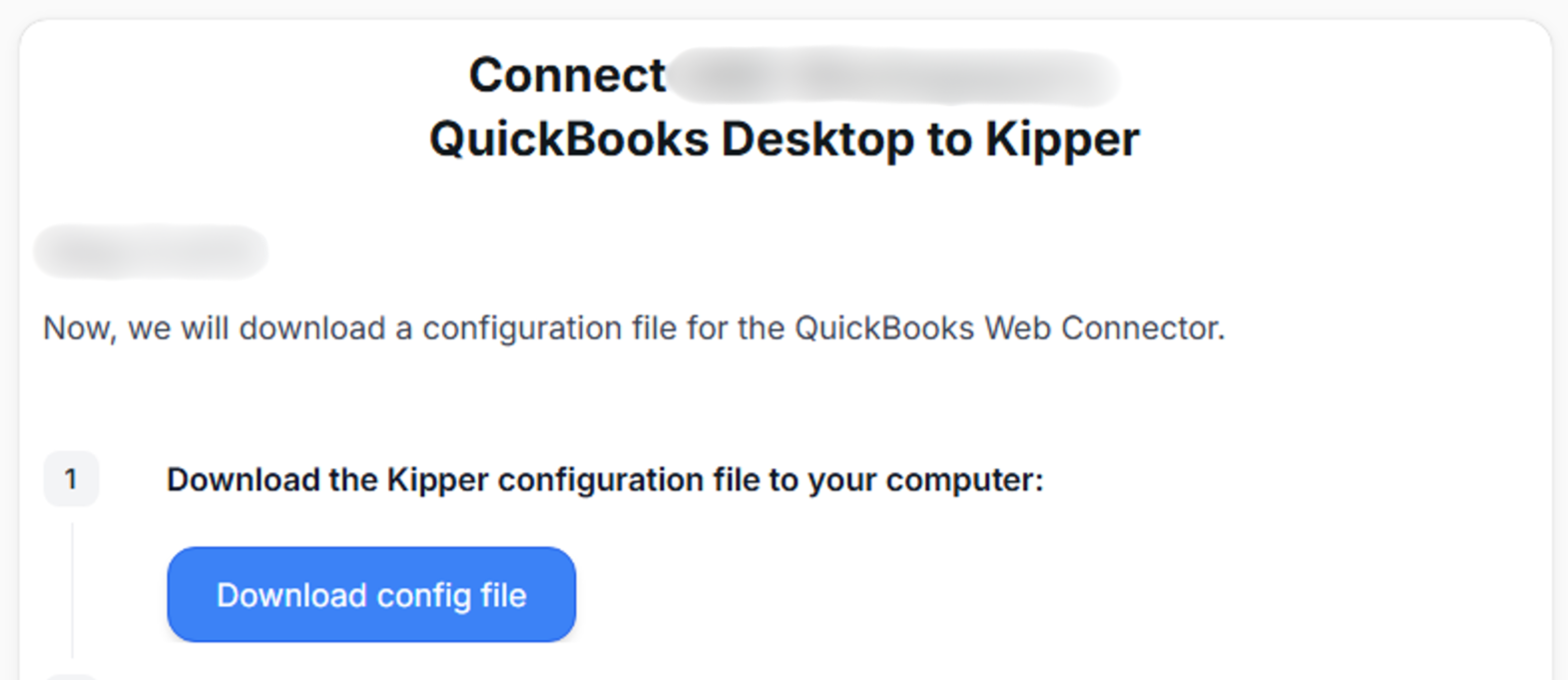
If the Web Connector doesn't launch, open QuickBooks and go to File → App Management → Update Web Services, click Add an Application, and select the downloaded
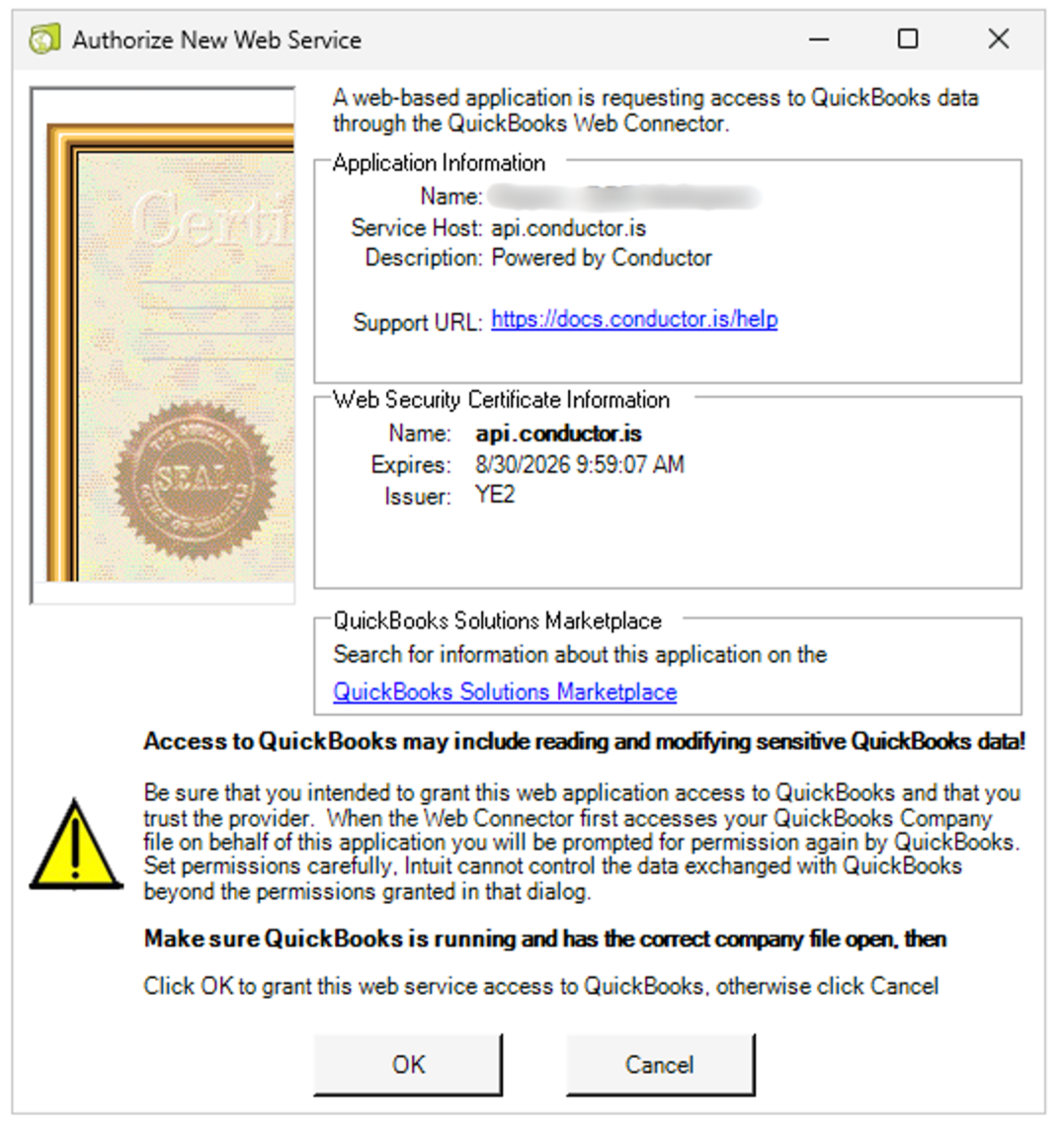
.qwcfile from your Downloads folder.3.5 — Authorize the Web Connector. QuickBooks shows a series of permission dialogs. Work through them in order:
-
Click OK on the "Authorize New Web Service" dialog to allow the request.
-
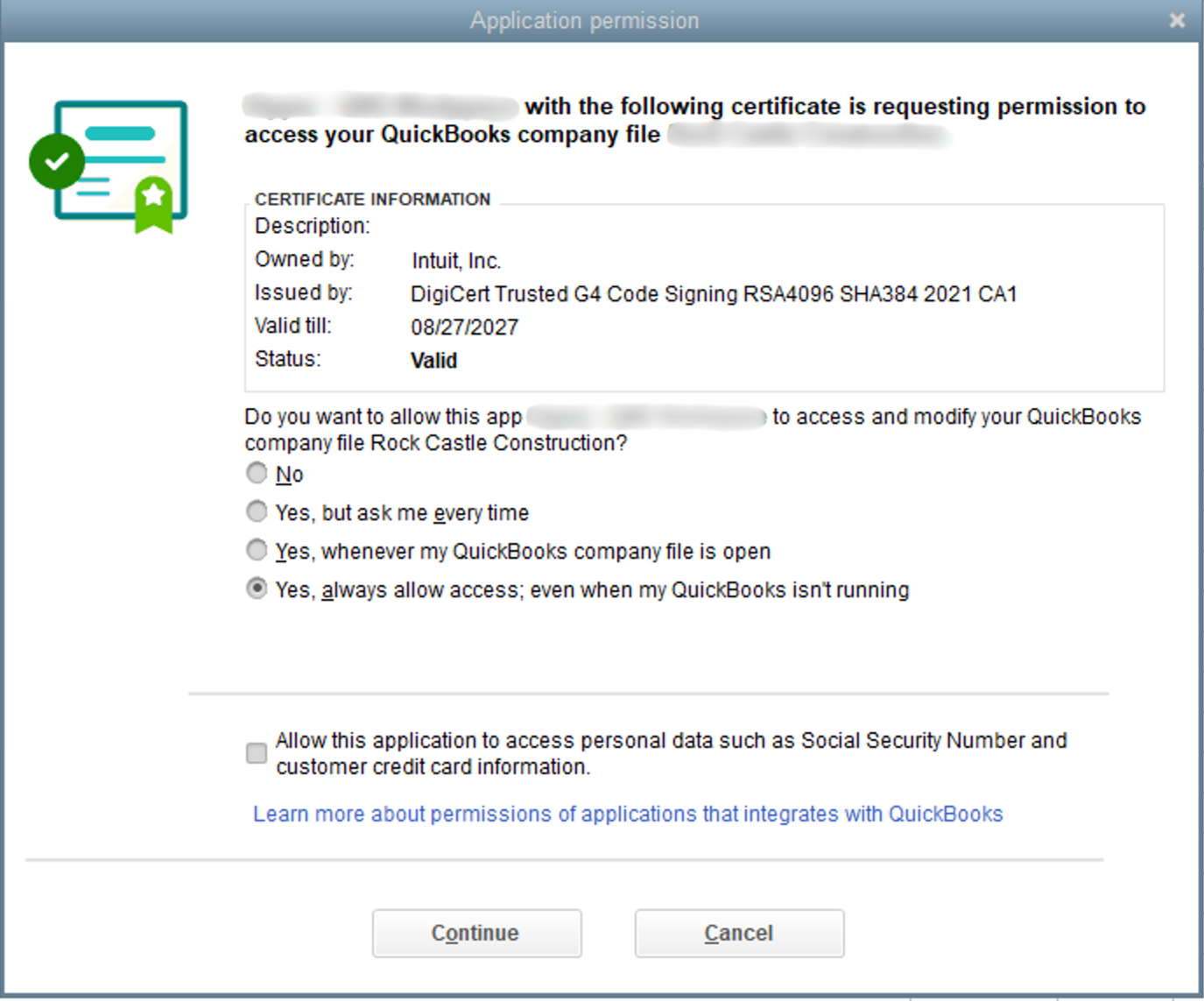
Select "Yes, always; allow access even if QuickBooks is not running" so Kipper can sync even when QuickBooks is closed.
-
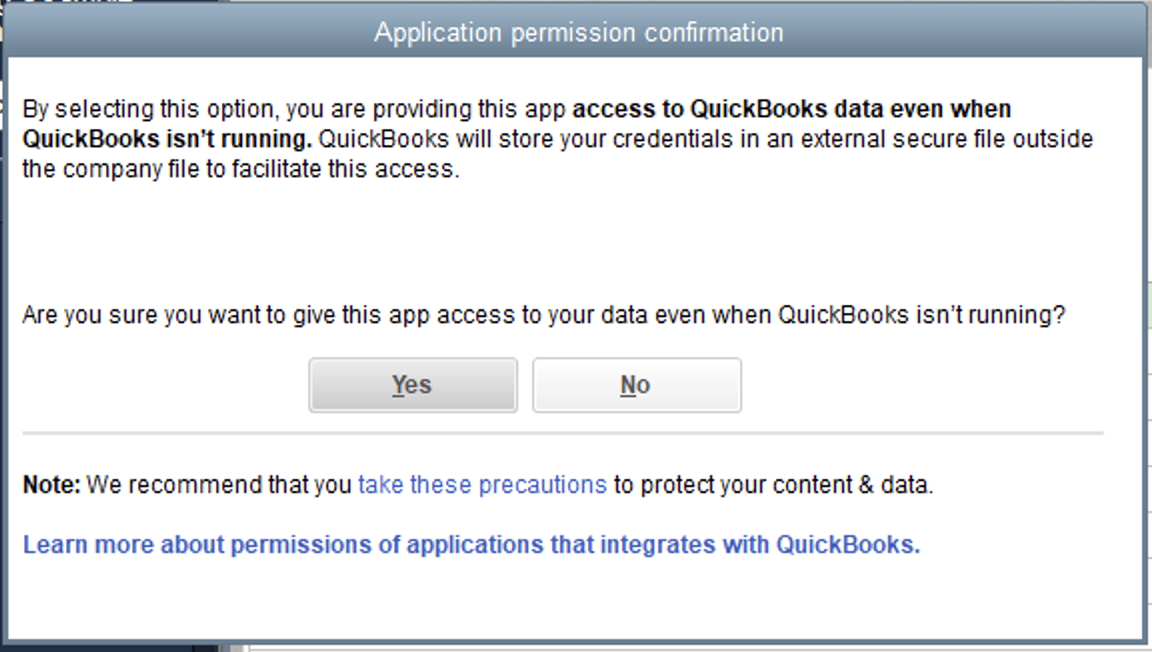
Click Yes to confirm allowing access when QuickBooks isn't running.
-
Click Continue, then Done to finish authorizing.
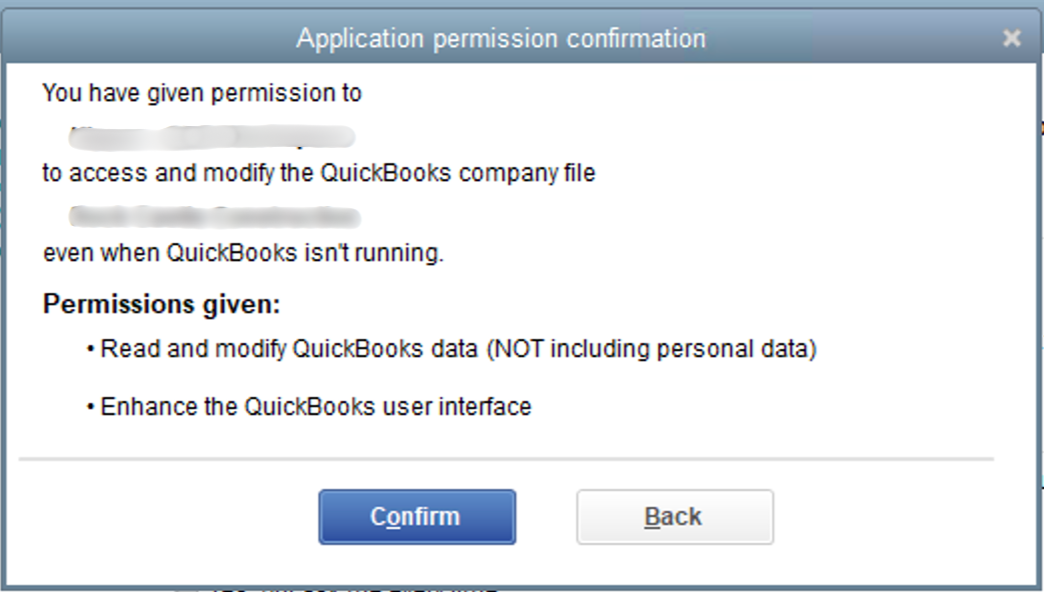
After clicking Continue, the QuickBooks Web Connector opens and loads your application.
3.6 — Configure the Web Connector. In the QuickBooks Web Connector, find the row for Kipper and tick the Auto-Run checkbox so syncs run automatically. Then, back in Conductor, copy the unique Web Connector password shown on screen. In the Web Connector, paste it into the Password box next to Kipper, press Enter, and click Yes when asked to save it.
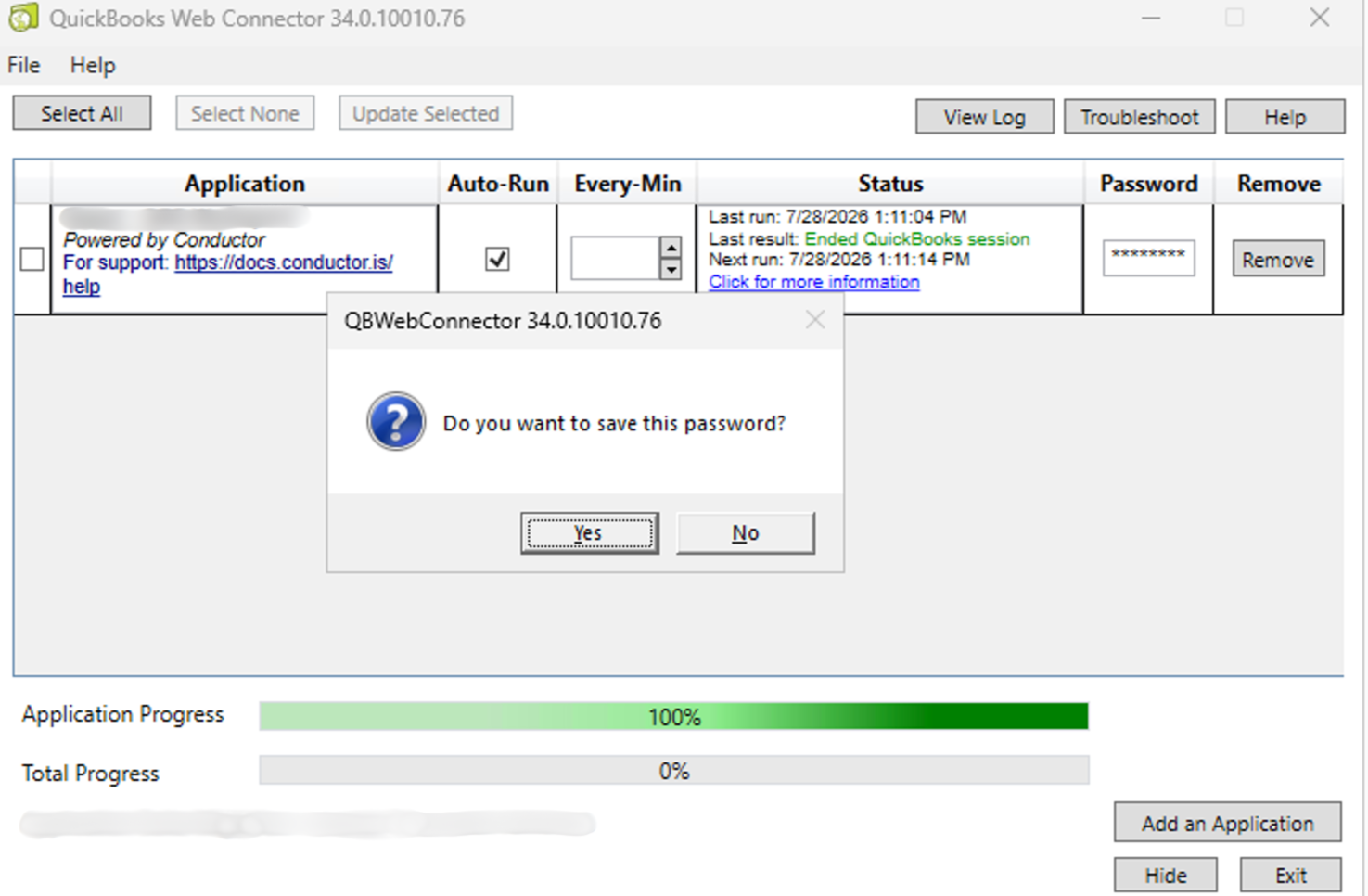
Don't change these settings
Don't change the Every-Min value or uncheck Auto-Run. The Web Connector runs quietly in the background, and changing these will break the connection.
The Web Connector then starts syncing, and you'll see the progress bars reach 100%.
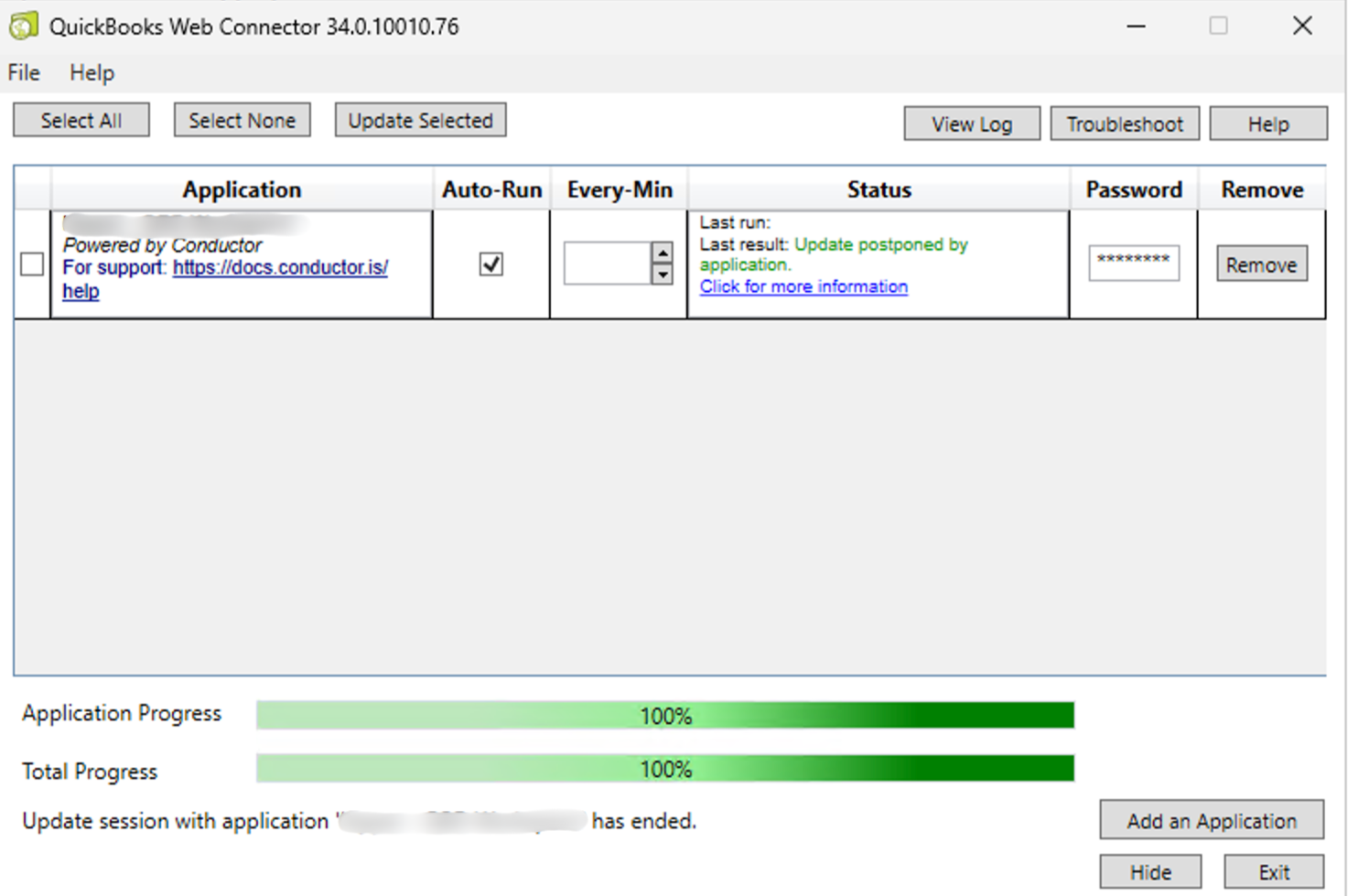
3.7 — Verify and return to Kipper. The Web Connector is now configured. Go back to Conductor and check the connection status on the final step. Once it shows as succeeded, click Return to Kipper to finish.
If the connection check fails with an error like "Setup is not done just yet" or "Our servers have not heard from your computer's Web Connector yet," close and reopen the Web Connector, then try again:
- Open Task Manager, find the QuickBooks Web Connector process, and click End task to close it.
- Reopen the Web Connector and confirm Auto-Run is ticked and the password is saved (if not, paste it, press Enter, and click Yes).
- Go back to Conductor and recheck the connection status.
-
What Kipper can answer
- Invoices and payments
- Customer and vendor balances
- Outstanding and overdue invoices
- Accounts receivable aging
- Bill and expense summaries
Sync details
QuickBooks Desktop does not send live change notifications, so Kipper keeps your data fresh by polling:
- On connect: Kipper runs a full sync as soon as the connection is made.
- Regular sync: every 15 minutes Kipper pulls the records that changed since the last successful sync. Each regular sync also reconciles any records that were permanently deleted in QuickBooks Desktop, so removed invoices, bills, or customers stop appearing in Kipper's answers within the same 15-minute window.
- Weekly full sync: once a week Kipper re-pulls the complete data set as a safety net against gaps in the delta feed.
- Manual sync: you can trigger a sync any time from the Data Sources page.
Admins can adjust the regular sync interval per data source from Data Sources → [your QuickBooks Desktop source].
For Kipper to sync, QuickBooks Desktop must be running with the company file open and the Web Connector active on that machine. Multi-currency company files are supported whether or not multi-currency is enabled in QuickBooks — no extra configuration is required.
Admins can also re-run a sync or clear synced data from the source's detail page. See Sync actions.
Troubleshooting
If a sync doesn't complete or the source shows as disconnected, check that:
- QuickBooks Desktop is running with the correct company file open
- The Web Connector is running on the same machine
- The machine is online and not asleep during the scheduled sync
To re-establish the connection, go to Data Sources in the sidebar and reconnect. Contact support@kipper.com if the issue persists. We reply within one business day.