Using Kipper in Slack
Which Kipper Slack app you'll install
Kipper publishes a dedicated Slack app for each finance system it supports. When you add Slack from the Kipper portal, the interface picker shows the app that matches your connected data source:
- QuickBooks Online → Slack (QuickBooks)
- Xero → Slack (Xero)
- NetSuite → Slack (NetSuite)
Installing the Kipper Slack app
- In the Kipper portal, go to Interfaces in the sidebar
- Click Add interface and choose the Slack option shown for your data source
- Authorize the Kipper app in your Slack workspace — Slack admin permissions may be required to install apps
- Kipper is redirected back to the portal once Slack confirms the install
Each Kipper member's email must match the email on their Slack account. If the two don't match, Slack won't recognize the user as an authorized Kipper user and messages will be ignored.
Where to find Kipper in Slack
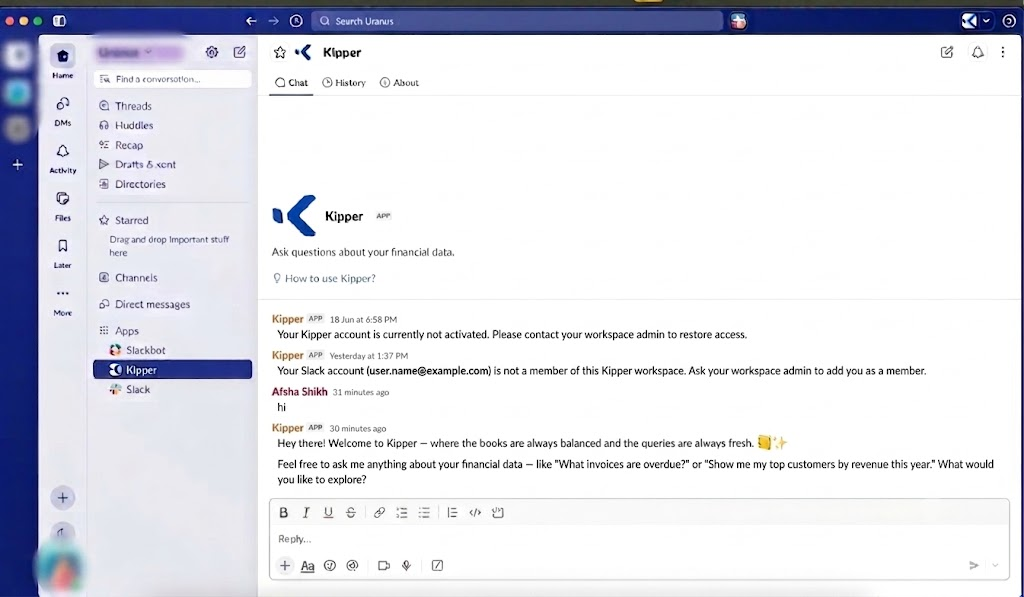
After installing, Kipper appears in your Slack sidebar under Apps. Click the Kipper app to open its Messages tab — a direct-message-style surface dedicated to talking with Kipper.
The first time you open the Messages tab, Kipper posts a short welcome message introducing itself and inviting you to ask a question. This runs once per user.
You can also mention @Kipper in any public or private channel Kipper has been added to.
Asking questions
- In the Messages tab or a DM: open Kipper and type your question — no
@mention needed. Replying inside an existing thread continues that conversation; a new message starts a fresh one. - In a channel: mention
@Kipperfollowed by your question (Kipper must be added to the channel first)
Kipper replies in the same thread, usually within a few seconds. Complex queries may take longer.
Follow-up suggestions
Under most replies Kipper adds a short bulleted list of suggested follow-ups you might want to ask next — for example, drilling into a specific customer or narrowing a date range. Tap or type the suggestion to ask it as your next question.
One-click PDF invoice (QuickBooks Online only)
When you ask a question that resolves to exactly one QuickBooks Online invoice, Kipper offers to fetch its PDF. Reply Yes (or tap the suggested follow-up) and Kipper returns a download link for the invoice PDF in the same thread.
This currently works only for QuickBooks Online invoices. Support for Xero and vendor bills is planned.
What you can ask
Slack reaches the same records as every other Kipper interface, and because a Slack reply can hold a table comfortably, it handles the longer answers that do not work well over SMS.
Customer and invoice questions
- Which customers have invoices overdue by more than 60 days?
- What is Halcyon Retail's current outstanding balance?
- List the invoices we raised for Orchard Systems last quarter
- Has invoice 2318 been paid, and when?
Supplier and bill questions
- Which bills from Vantage Logistics are still unpaid?
- What have we paid Cobalt Print this quarter?
- Which purchase orders for this supplier have already been billed?
Breakdowns and comparisons
- Break open invoices down by Class (Tracking Category in Xero, Class or Department in NetSuite)
- Compare payments received this month with last month
- How much inventory do we have on this item?
Threads are where Slack earns its place. Ask a broad question, then narrow it in the same thread — because replying in a thread continues that conversation, a follow-up like "now only the ones over 90 days" works without repeating the original question.
Who tends to use Slack
Slack suits teams who already run their day in a channel and want the answer where the conversation is already happening.
- Account executives and customer success checking an account's balance in the channel where that account is discussed
- Support teams confirming payment status while a ticket is still open
- Operations and warehouse leads checking stock or an open purchase order
- Project and cost-center owners tracking spend against their own area
- Executives who want one figure without opening the finance system
None of these people need a login to your finance system.
Two things are worth knowing about asking in a shared channel. Answers are always computed against the permission level of the person who asked, never the channel's. But the reply itself is visible to everyone in that channel, so it is worth thinking about which channels Kipper is added to. For anything sensitive, ask in a DM or the Messages tab instead.
What Kipper cannot answer
The limits are the same in Slack as in every other interface, and what Kipper can reach depends on which finance system you have connected. Coverage differs — NetSuite includes ledger-level records that the accounting platforms do not, and Xero excludes bank data entirely. See Coverage differences by system.
Whatever the system, Kipper answers from records it has synced. It will not calculate a financial ratio, build a budget, produce budget-versus-actual variance, or write a board summary, and it does not run finance workflows such as closing the books, reconciling, or auditing. When the data cannot answer a question, Kipper says so rather than guessing.
Asking for help
Send help (case-insensitive) as a message and Kipper replies with a short explanation of what it does, a few example questions, and a link to this help center. If your workspace hasn't finished setting up its Slack interface yet, that same help message is what Kipper sends in response to any message.
Troubleshooting
If Kipper doesn't respond:
- Confirm the app is still installed (Slack admin → Manage apps)
- Look for Kipper under Apps in the sidebar — try refreshing Slack if it isn't visible
- Check you're using
@Kippercorrectly in channel messages (not required in DMs or the Messages tab) - Verify your user has been granted access in the Kipper portal
- Windows only: if Kipper doesn't appear in the sidebar, update your Slack desktop app to the latest version. Older Windows builds can prevent new apps from appearing until the client is updated.
Contact support@kipper.com if the issue persists — we reply within one business day.